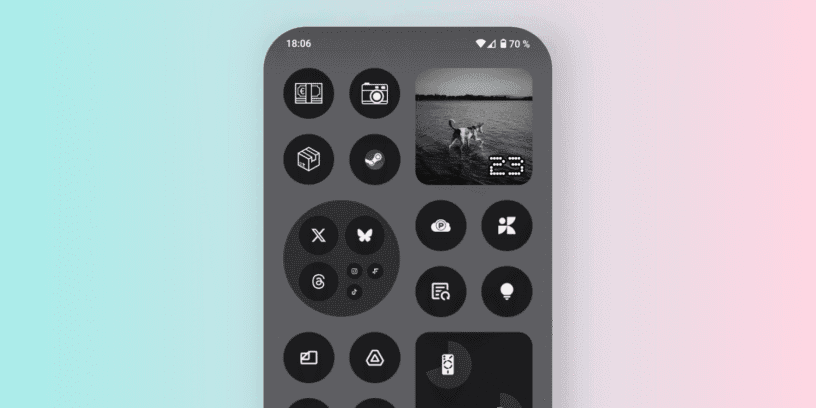
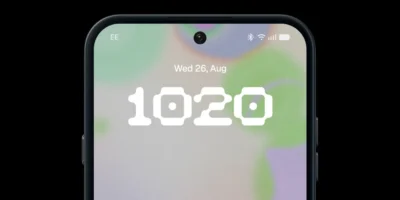


Would you like to have a visual calendar, elegant and minimalist Want to add photos to your phone's home screen? Well, today I'm bringing you an original idea that you can do yourself with a little creativity and using the photo widget. Nothing OS. The result: a widget that changes daily and displays a different image with the current day's number. Ideal if you like the Nothing style or simply enjoy having something unique on your screen. Before we begin, here's a link where you can... See other tricks and tips.
Step 1: Design your 31 images with the days of the month
The most time-consuming part, but also the most fun. To make it work as a calendar, you need to create 31 images, one for each day of the month. Ideally, each image should have an eye-catching or elegant design with the day's number (from 1 to 31). I used Canva, but you can use any editing or design app.
In my case, I have opted for a black and white, monochromatic style, with the numbers of the day represented with dots, in the style of Nothing.
You can use personal photos, illustrations, minimalist fonts, or any other style you like. Your imagination is the only limit!
Important: Make the images square, or if you're using the round widget, make sure the content is centered so it looks good.
Step 2: Add the photo widget to your home screen
Once you have the 31 images, it's time to assemble it on your mobile device:
- Press and hold on your mobile phone's home screen
- Tap on Widgets
- Look for the option Photos Nothing OS
- Select the square or round widget, according to your preference, and add it.
- Once placed, tap the widget's gear icon to configure it.
Step 3: Configure the widget to function as a calendar
Here's where the magic happens. In the widget settings:
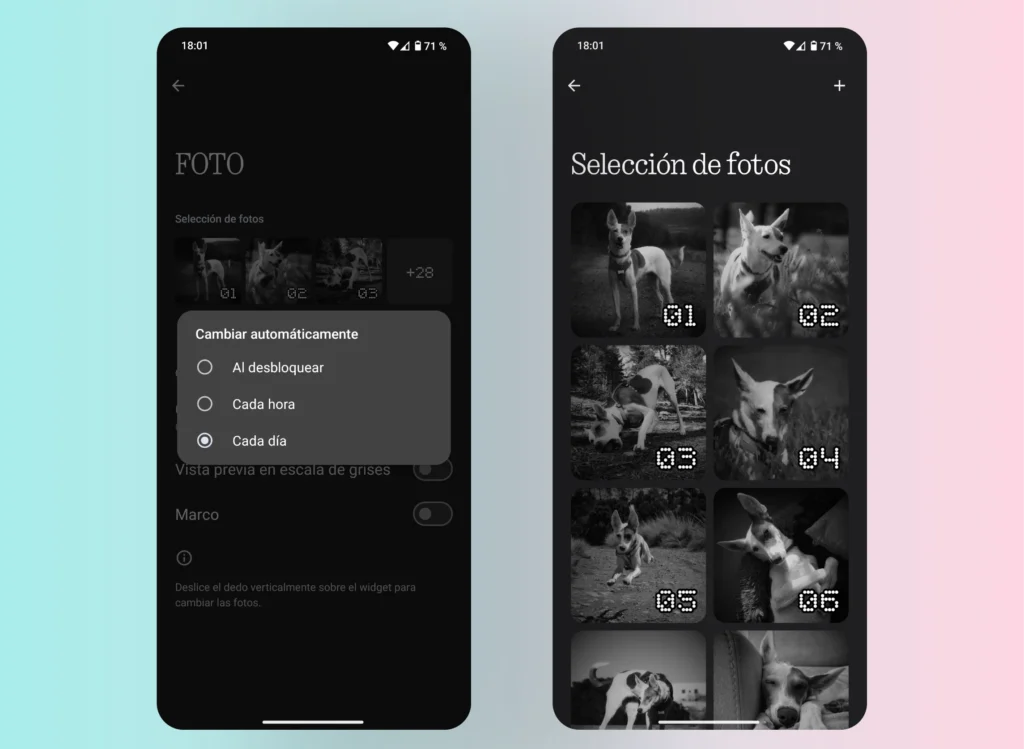
- Click on “Add photos” and select the 31 images
⚠️ Do it in orderIt starts with the image from day 1, then day 2… and so on until day 31. - Then, in the option “Change automatically”, select “"Daily"”
And that's it! You now have your personalized visual calendar up and running on your screen. On the first day, you'll need to swipe up or down within the widget until the current day's number appears. From then on, the widget will automatically update at midnight each day, displaying the image and the next day's date. A brilliant feature for those who love design, organization, and useful widgets.
Please note: If the month has fewer than 31 days (for example, February with 28 days), the widget will still cycle through the images for the 29th, 30th, and 31st. In that case, you'll need to swipe. manually until you return to the image from day 1 when the new month begins. It's not the most convenient, but it's not a big deal if you like the idea.
A simple idea, but with a lot of potential if you like customizing your phone. If you enjoy these kinds of tutorials and tips, Follow me on Twitter/X.



Leave a Reply