
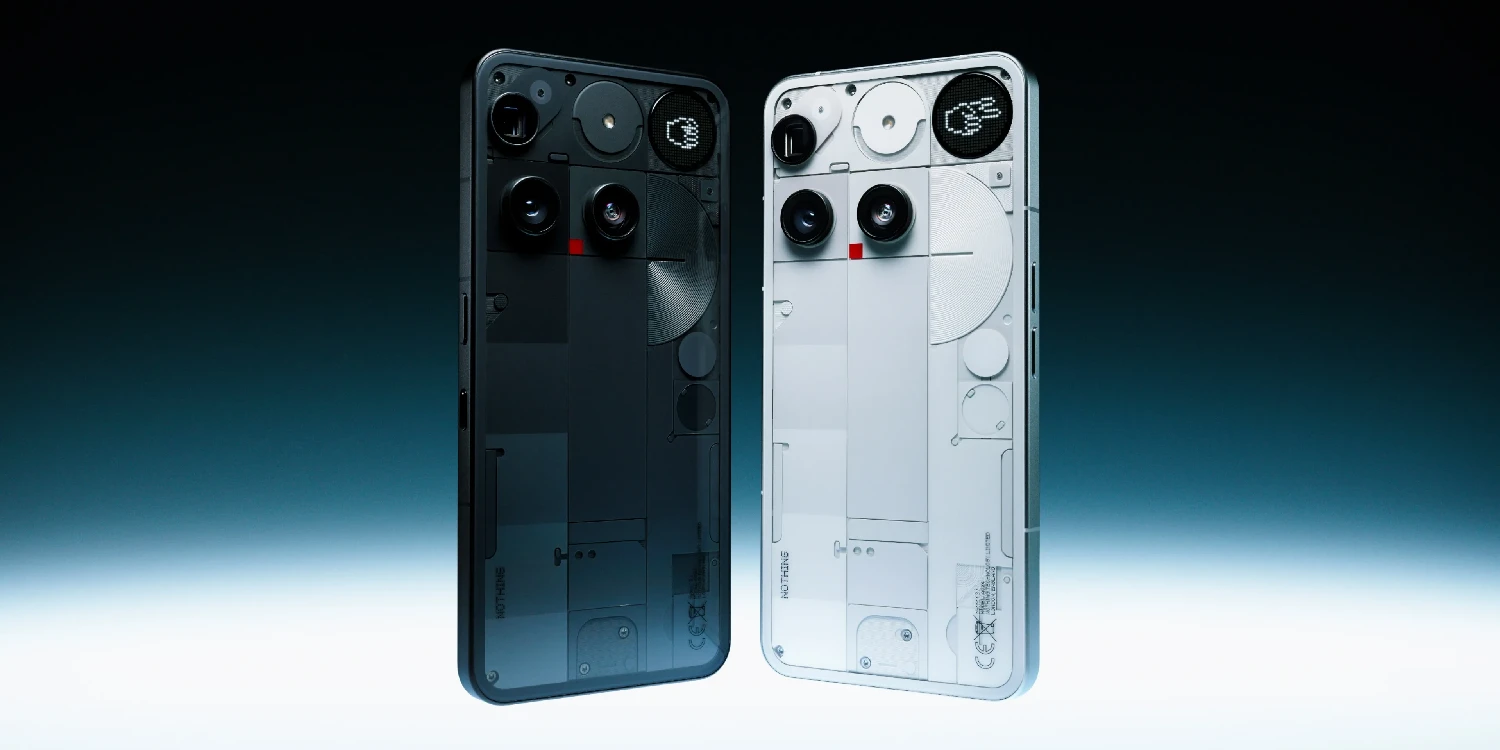
The new ones camera presets They are one of those small functions that, although they seem simple, can make a big difference in the final result of our photos. They are available only on Nothing Series 3 models (Phone (3), Phone (3a) and (3a) Pro) and allow you to apply custom shooting settings with a single tap.
What exactly are presets?
A preset is basically a predefined configuration of parameters such as exposure, contrast, color temperature, saturation, and more. No complications: it's applied automatically when you choose the preset, and that's it. Ideal if you like to maintain a consistent style in your photos or if you simply want to get more out of your camera without having to adjust everything manually each time. By the way, did you know you can create your own presets?
How to install a preset with a QR code
There are two ways to load presets onto your camera, but the fastest is this:
- Open the camera app
- Point the camera at QR code from the preset
- When the app detects it (a red box will appear around it), tap on the code
- The preset will be automatically added to your list
Easy, fast, and without extra steps. This feature is ideal for sharing presets between users or downloading them from photography communities.
ADVERTISING
How to import a preset from your gallery
If you have a preset QR code saved on your mobile device, you can also import it manually:
- Open the camera app and tap the down arrow to open the presets menu
- Touch the gear icon top right
- Scroll to the bottom of the list and select «"Import preselection"»
- Then choose «"Load QR code from the Gallery"»
- Find the QR code image in your gallery and select it.
- The preset will be added just as if you had scanned it.
This is useful if you've downloaded a QR code from Telegram, social media, or your favorite blog.
How to apply a preset to your photos
Once you have saved presets, applying them is a piece of cake:
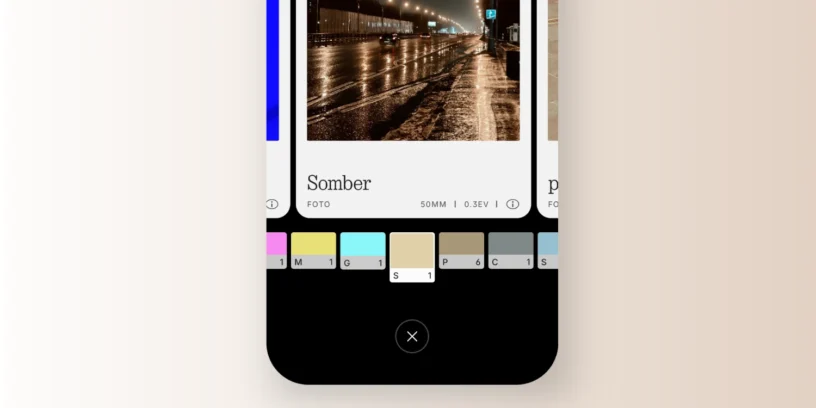
- Enter the camera and touch the down arrow to display the presets
- Swipe through the available options until you find the one you want
- Click on the preset to activate it
- Take the photo as usual. The preset settings will be applied automatically.
Each preset can have a different focus: vibrant colors, warm tones, artistic black and white… you decide what style you want for each moment.
ADVERTISING
Here are some of the best presets available
In this section, I'll be compiling worthwhile presets. Here's a first selection with varied styles you can try right away:
A small feature with a lot of potential
Presets are a smart way to save time and experiment with styles without any hassle. And while they're currently only available on the Nothing Phone 3 series, they should be added to earlier models like the [missing information - likely the phone's name or abbreviation] later this year. Nothing Phone (2a).
So if you have one of these devices, I encourage you to try this option. You can even create your own presets and share them with the community. Who knows, maybe you'll become famous for your photographic style.



Leave a Reply