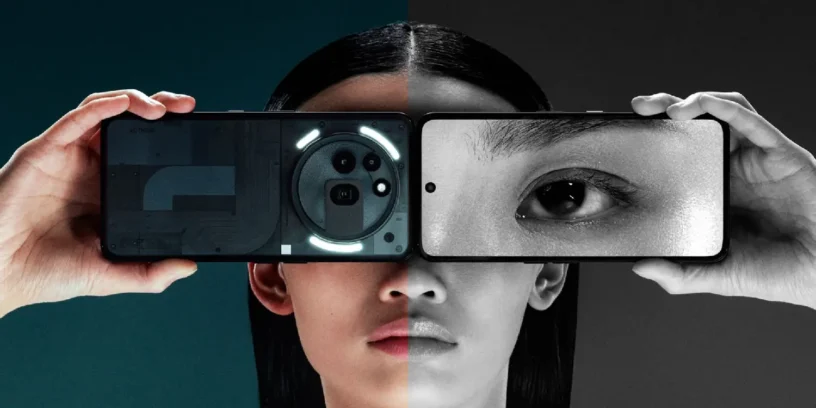
With the series Phone (3a), Nothing has introduced Camera Presets, Camera Presets is a powerful feature that allows for greater creative control over the appearance of photos and videos directly from the camera app. Unlike traditional post-processing, which requires applying color grading after capturing an image, Camera Presets let you see the final result in real time as you shoot.
This functionality has been explored in detail by @kustom_tf, who He shared a tutorial on the Nothing Community forum with valuable information on how to get the most out of Camera Presets. You can check out his original post here: Nothing Community.
For now, Camera Presets are exclusive to the Phone (3a) series, but will arrive on older Nothing devices in the future. Since this function requires specific adjustments for each camera configuration, additional time is needed for its optimization.
Why are Camera Presets important?
Real-time color grading
Professional photographers and filmmakers often capture in flat color profiles like RAW or LOG and then spend hours adjusting colors in software such as Adobe Lightroom, Photoshop, or DaVinci Resolve. With Camera Presets, this step is eliminated, allowing you to apply color grading directly in the camera app, saving time and ensuring consistency.
Consistency in style
Whether you're a content creator or simply someone looking for a consistent aesthetic in your photos and videos, Camera Presets allow you to maintain the same look in different lighting conditions and environments.
No post-processing required
Not everyone has the time or skill to manually retouch their photos and videos. With this feature, you can capture professional-looking shots without any post-editing.
Performance optimization
Nothing Camera applies LUTs in real time without adding any processing delays. Unlike other third-party apps that apply LUTs after capturing the image, Nothing Camera Presets lets you see the final result directly in the viewfinder before taking the photo.
Create, change, and share Camera Presets
You can create unique photographic styles using all the camera's functions and easily switch between them. Plus, you can share your presets or download your favorites via QR codes.
Step 1: Create a filter (LUT) for Nothing Camera
A LUT (Look-Up Table) is a color transformation profile that maps one set of colors to another, allowing a specific style to be applied without affecting the original image quality.
Method 1: Photoshop (quick and easy)
- Apply color adjustments using:
- Curves
- Hue/Saturation
- Color balance
- Selective color
- Open Photoshop and import an image with a variety of colors.
- Go to File > Export > Color Lookup Tables.
- Select the format .CUBE and save the file.
You now have a LUT ready to import into Nothing Camera.
Method 2: Online LUT generators (no software required)
- Visit a LUT generation platform such as:
- Lutify.me
- IWLTBAP LUT Generator
- 3DLUT Creator
- Upload a reference image.
- Apply color adjustments using the available tools.
- Export and save the LUT in the following format: .CUBE.
Method 3: Lightroom (requires additional steps)
- Edit an image in Lightroom with the desired color grading.
- Export the original and edited versions.
- Use IWLTBAP LUT Generator to compare both images and generate a file .CUBE.
Method 4: DaVinci Resolve (for professional color users)
- Open DaVinci Resolve and import a clip or image into the timeline.
- Go to the tab Color and adjust using nodes:
- Lift, Gamma, Gain
- Contrast, Pivot
- Curves, Hue vs Hue/Sat/Lum
- Once you're satisfied with the gradation, right-click on the thumbnail in the gallery and choose Generate 3D LUT (33 Point Cube).
- Save the file .CUBE on your computer.
Step 2: Import LUTs into Nothing Camera
- Open the camera app and go to Filters.
- Touch Import LUT and select the file .CUBE.
- The LUT will appear as a custom filter that you can apply in real time.
Step 3: Create custom presets in Nothing Camera
- Select the imported LUT in the preset creation section.
- Adjust the mode, focal distance, exposure, and other advanced settings.
- Add a cover image, a name, and a description, then save the preset.
- You can also modify an existing filter and save it as a new preset without needing a file. .CUBE.
Optimize presets for better results
- Test under different lighting conditionsA LUT that looks good outdoors may look strange indoors.
- Adjust the exposure before applying LUTsSome LUTs are designed for low-contrast photos.
- Avoid color bandingExtreme settings can cause unnatural gradients.
Step 4: Share presets with the Nothing community
- Generate a preset card in the camera app by tapping on share.
- Share the preset with a QR code so others can scan and import it instantly.


Explore more possibilities
With custom LUTs and presets, you have complete control over the look of your photos and videos before you shoot. Whether it's a cinematic style, a vintage feel, or a vibrant look, this feature lets you define your own visual style.
Try it out, experiment with different LUTs, and share your best presets on our community. If you've created something interesting, tell us about it, I'd love to see it!



Leave a Reply