

If you have any apps you want to keep away from prying eyes, Or perhaps you simply prefer a cleaner, more organized app drawer; Nothing phones offer a way quick and easy to hide them thanks to Nothing OS. In fact, there are two different methods To do it. Here I explain both step by step.
Method 1: Access the secret section by swiping your finger
- Swipe up from the home screen to enter the application drawer
- Once inside, swipe from left to right within the app drawer itself. This will take you to a hidden section where the icons of the apps you choose to hide are stored
- Press the pencil icon located at the top right
- Now you can select the apps that you wish to hide. Once selected, go back using the arrow at the top of the screen.
The selected apps they will disappear from the main drawer and they will only be available in this hidden section.
💡 If you want any of them to reappear later, repeat the steps and uncheck the app that you had hidden.
2nd method: use the search engine's options menu
- Enter the application drawer (sliding upwards)
- Touch the search bar from the top
- On the right, press the three vertical points
- Choose the option «"Hide app icons"»
- Select the apps you want to hide
This method is great if you want to quickly hide apps without navigating through menus.

What happens to hidden apps?
The applications you hide using any of these methods They will not appear in the app drawer. They are still installed on your mobile, but you can only access them by going into the hidden icons section.
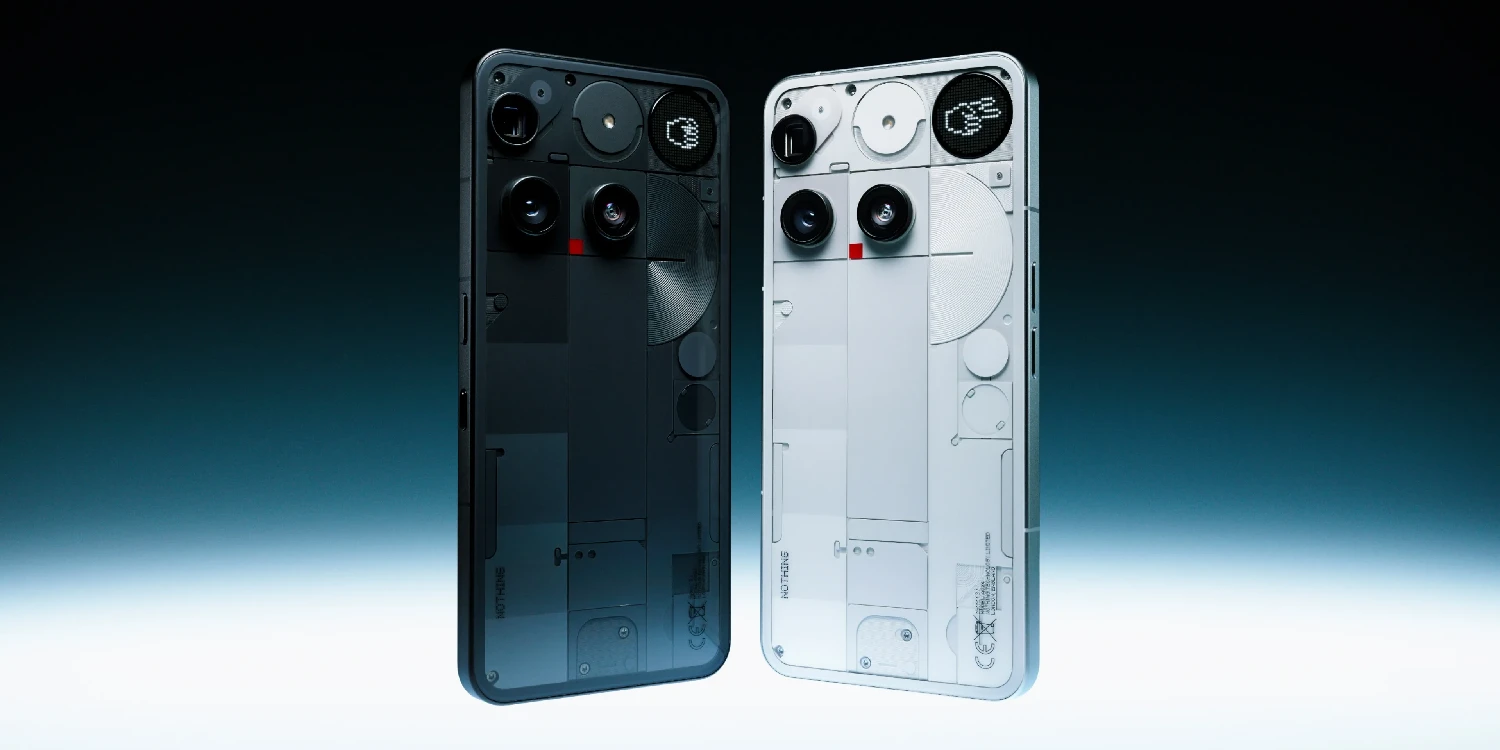
It's a practical way to have a cleaner drawer or keeping certain apps off the radar Without needing to uninstall or block them. Hiding apps on your Nothing phone is very easy and requires no external apps or complicated settings. Whether you want more privacy or simply like to keep your app drawer tidy, these native system options do the job perfectly. Discover more tips and the latest news from Nothing! Following me on Twitter/X.



Leave a Reply